
Your First Run
This guide covers two ways to run Terraform or OpenTofu in InfraDots for the first time. Choose the path that fits you.
Which scenario fits you?
| Scenario | Best for |
|---|---|
| Scenario A: I have existing code | You already have Terraform/OpenTofu in a repo (or locally) and want to run it in InfraDots. |
| Scenario B: Bootstrap with onboarding | You're new to the platform and want to use InfraDots onboarding (guided AI or custom) to create workspaces and optionally provision infrastructure. |
Scenario A: I have existing Terraform/OpenTofu code
You have configuration in a Git repo or on your machine and want to run plan and apply in InfraDots.
Prerequisites
- An InfraDots account and organization (Getting started)
- Terraform/OpenTofu code in a Git repository, or use the minimal sample below
Step 1: Create a workspace
- In your organization, click Create Workspace
- Enter a name (e.g.
my-first-workspace) and optional description - Choose how to provide code:
- No VCS — You'll paste or upload configuration, or use the CLI later
- Version control — Connect GitHub/GitLab and select the repo and branch that contain your
.tffiles
- Select your Terraform or OpenTofu version (e.g. OpenTofu 1.6.x) to match your
required_version - Click Create Workspace
Step 2: Add configuration
If you connected a Git repo: Ensure the repo has at least one .tf file at the root (or in the path you configured). InfraDots will use it on the next run.
If you're not using VCS yet: Add a minimal example in the UI (if your workspace supports it) or push a sample to a repo and connect it. This example creates no real cloud resources:
terraform {
  required_version = ">= 1.5.0"
}

resource "null_resource" "hello" {
  triggers = {
    message = "Hello from InfraDots"
  }
}

output "message" {
  value = "Your first run worked!"
}
Step 3: Set variables (if needed)
If your code uses variables (e.g. var.region), define them in InfraDots:
- Open the workspace → Variables
- Add variable — set the key (e.g.
region), value (e.g.us-east-1), and category (Terraform variable) - For secrets, enable Sensitive so the value is hidden in logs and the UI
For the sample above, no variables are required. See Variables and secrets for more.
Step 4: Run Plan
- In the workspace, click Plan (or Run plan)
- InfraDots runs Terraform/OpenTofu plan and shows the output in the run details
- Review the plan:
- Green (+): resources to be added
- Yellow (~): resources to be changed
- Red (-): resources to be destroyed
Step 5: Apply
- After a successful plan, click Apply (or Apply on that run)
- Confirm if prompted
- InfraDots runs apply and updates state
- When the run completes, check Outputs in the run (and in the workspace Outputs tab if available)
Step 6: View state and outputs
- State — InfraDots stores state remotely and encrypted for this workspace
- Outputs — Shown in the run result and typically in the workspace Outputs tab
Scenario B: Bootstrap infrastructure with InfraDots onboarding
You're new to InfraDots and want to use the onboarding flow to get familiar with the platform and optionally provision infrastructure with AI or pre-built building blocks.
When to use this
- First time in InfraDots and you want a guided path
- You want to provision initial infrastructure (e.g. VPC, compute, storage) on your chosen cloud without writing Terraform from scratch
- You prefer to pick specific components (VCS, workspaces, imports) step by step
Step 1: Create your organization
- Sign up and create your account (Getting started)
- Create your first organization and choose a subscription (e.g. free trial or a plan)
- When prompted, do not skip the onboarding — choose Start onboarding (or equivalent)
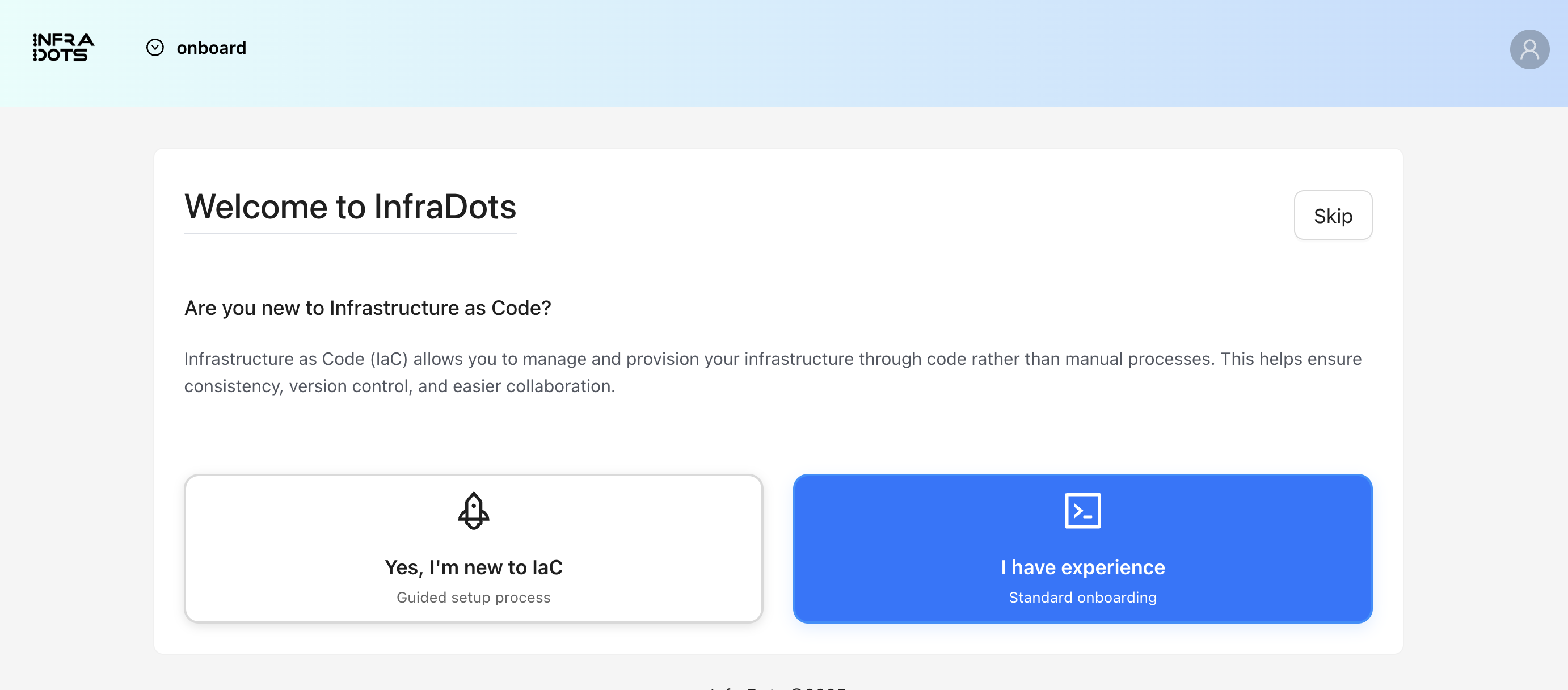
Step 2: Choose onboarding type
InfraDots offers two onboarding flows:
Guided onboarding (AI)
- For first-time users
- You select your cloud (e.g. AWS, GCP, Azure) and what you want (e.g. network, compute, database)
- InfraDots uses AI to generate and run Terraform/OpenTofu for you
- You get a workspace and real infrastructure created from the generated code
Custom onboarding
- You choose which components to set up yourself
- Typical options: Workspace import (from another provider), VCS integration (connect GitHub/GitLab), Create a workspace, team and permissions
- You stay in control of each step; no AI-generated code unless you add it later
Step 3: Complete the onboarding steps
Follow the wizard:
- For guided: pick cloud, region, and resources; review the generated plan; apply when ready
- For custom: connect VCS, create or import a workspace, add variables if needed
Onboarding will create at least one workspace and may trigger an initial plan and apply for you.
Step 4: Your first run (after onboarding)
Once onboarding has created a workspace and (optionally) run plan/apply:
- Open the workspace from your organization dashboard
- You’ll see run history, state, and outputs like in Scenario A
- To run again: click Plan then Apply, or push to the connected branch if VCS triggers are enabled
From here, the workflow is the same as Scenario A: change code (or generated code), run plan, then apply.
Skipping onboarding
If you’re experienced with Terraform/OpenTofu and InfraDots, you can skip onboarding when creating your organization. Use Scenario A to create a workspace and run your existing code instead.
What's next?
- Variables and secrets — Manage Terraform variables and environment variables safely
- Connect VCS — Trigger runs automatically on push
- Code structure — Organize larger projects across files and workspaces
- From local to InfraDots — Move existing local Terraform/OpenTofu workflows into InfraDots